This is by far the easiest method:
sudo apt install python3-openstackclient This is a step-by-step guide to use the Openstack CLI via native python-install on Windows. The following is tested on Windows 10 only. It will take you through installing all the dependencies.
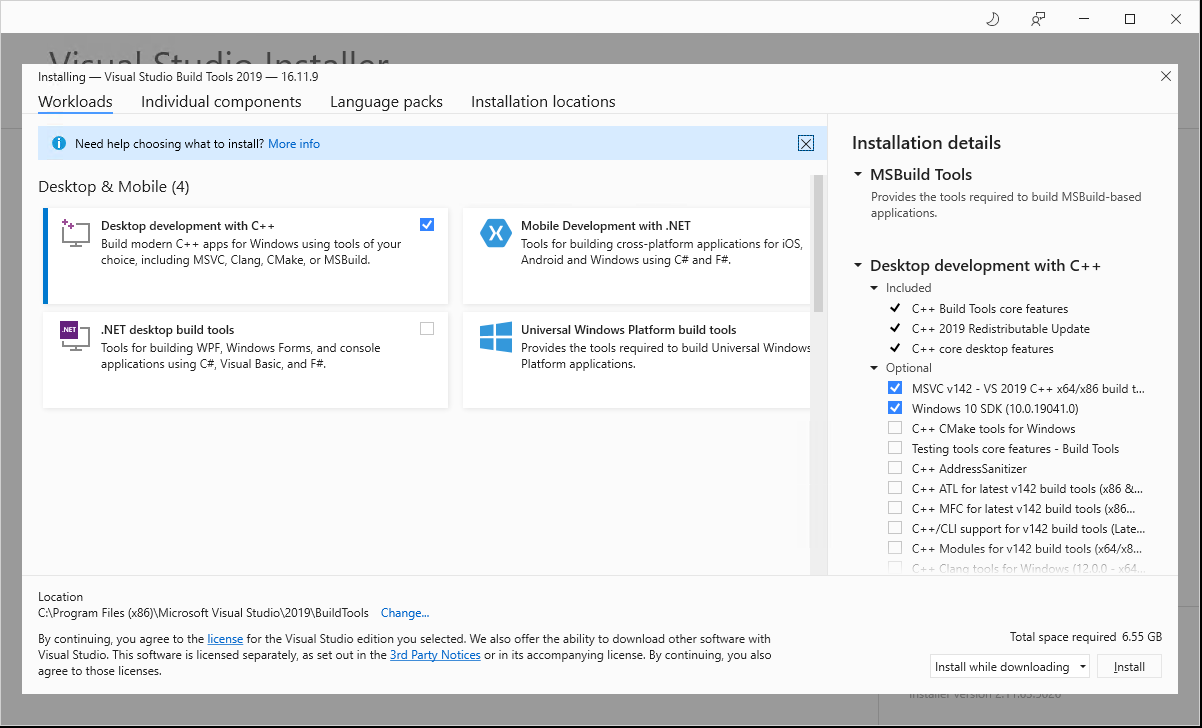
The python-openstackclient needs some Microsoft C++ Build tools in order to be successfully installed


Your Python for Windows installation is now ready for use.
The installer does not add its script directory to the users PATH environment variable. This is recommended to do, to avoid problems later.


%APPDATA%\Python\Python310\Scripts and click OK on all the windows that has appeared in this process.Open Command Prompt, and execute the command
pip install python-openstackclient |
You will be prompted to install all the dependencies needed. Accept the installation, and wait for it to finish. You now have a working openstack-client in Windows!
To actually make the openstack-client somewhat useful, we need to "translate" the openrc.sh file from bash to powershell. Grab the openrc-file from the OpenStack Web UI as explained here. Copy the file to a new file, and name it <projectname>-openrc.ps1 i.e.
Edit your new .ps1 file, so that it looks something like this:
# To use an OpenStack cloud you need to authenticate against the Identity # service named keystone, which returns a **Token** and **Service Catalog**. # The catalog contains the endpoints for all services the user/tenant has # access to - such as Compute, Image Service, Identity, Object Storage, Block # Storage, and Networking (code-named nova, glance, keystone, swift, # cinder, and neutron). # *NOTE*: Using the 3 *Identity API* does not necessarily mean any other # OpenStack API is version 3. For example, your cloud provider may implement # Image API v1.1, Block Storage API v2, and Compute API v2.0. OS_AUTH_URL is # only for the Identity API served through keystone. $env:OS_AUTH_URL = 'https://api.skyhigh.iik.ntnu.no:5000/v3' # With the addition of Keystone we have standardized on the term **project** # as the entity that owns the resources. $env:OS_PROJECT_ID = 'c7d892e8b97945c4add0ecab10ed62ad' $env:OS_PROJECT_NAME = 'PRIV_larsep' $env:OS_USER_DOMAIN_NAME = 'NTNU' # unset v2.0 items in case set $env:OS_TENANT_ID = $Null $env:OS_TENANT_NAME= $Null # In addition to the owning entity (tenant), OpenStack stores the entity # performing the action as the **user**. $env:OS_USERNAME="larsep" # With Keystone you pass the keystone password. $OS_PASSWORD_INPUT= Read-Host -Prompt "Please enter your OpenStack Password for project $env:OS_PROJECT_NAME as user $env:OS_USERNAME" -AsSecureString $env:OS_PASSWORD = [System.Runtime.InteropServices.Marshal]::PtrToStringAuto([System.Runtime.InteropServices.Marshal]::SecureStringToBSTR($OS_PASSWORD_INPUT)) # If your configuration has multiple regions, we set that information here. # OS_REGION_NAME is optional and only valid in certain environments. $env:OS_REGION_NAME="SkyHiGh" $env:OS_INTERFACE='public' $env:OS_IDENTITY_API_VERSION=3 |
Run the script:
PS M:\Documents\SkyHiGh> .\PRIV_larsep-openrc.ps1 |
Enter your password when prompted, and you shoul now be able to run all the openstack-commands in that very powershell window 
PROTIP: If you're not allowed to run your newly made .ps1 file, run this command:
Set-ExecutionPolicy -ExecutionPolicy Unrestricted |
and retry.